UnitForge Web
 Mini Character
Loading Mini parts…
Mini uses its own selectors, parts and 128×112 frame format. Read the dedicated specification before automating it.
Mini AI specification (English / Korean)These days, AI agents do the building. The specification below is a complete, tested operating manual for UnitForge — every selector, part, animation and export format. Copy it and paste it to your AI (or give it the URL on the right), then ask in plain language, for example:
# UnitForge — AI Agent Guide

Spec-Version: 2026-09-15.1

## Aseprite export (2026-09-16)

Character `#btn-aseprite`, Monsters `#mon-aseprite`, Mini `#mini-aseprite` download all available animations as .aseprite. Uses the respective export scale (1/2/4), current equipment/colors/facing and the same renderer as PNG exports. One flattened editable Composite layer, not separate equipment layers. Each motion has a forward tag; non-looping motions use repeat=1. Per-frame durations are integer milliseconds with cumulative rounding to preserve total duration. Sprite-sheet target does not limit Aseprite export. Mini's standalone JSON button was removed; footer backup remains the selection restore workflow.

한국어: 세 탭 모두 Aseprite 내보내기를 지원합니다. 전체 동작·태그·프레임 시간·선택 배율을 저장하며 파츠별 분리 레이어가 아닌 합성 레이어 하나입니다. 미니의 별도 JSON 버튼은 삭제했고 조합 저장·복원은 하단 백업을 사용합니다.

## Mini Character — separate workflow

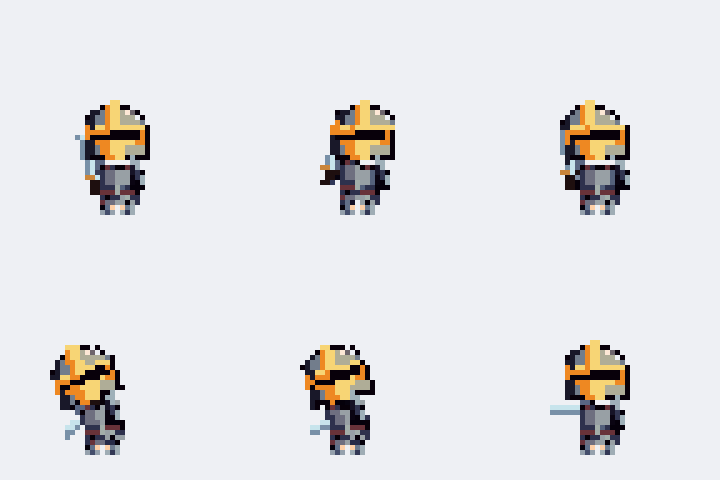
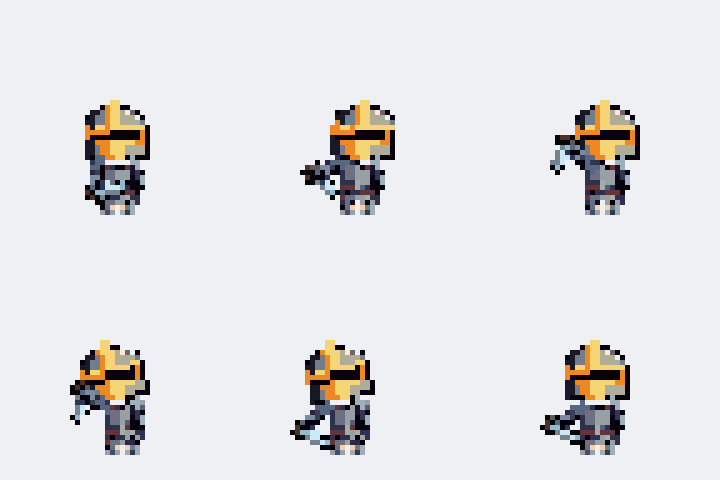
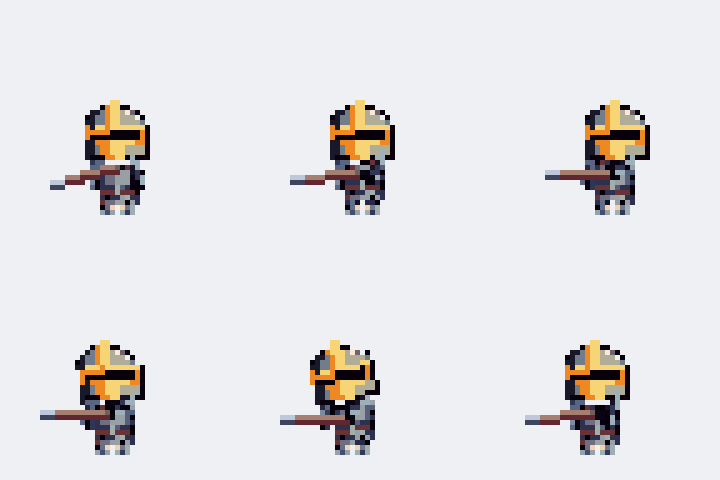
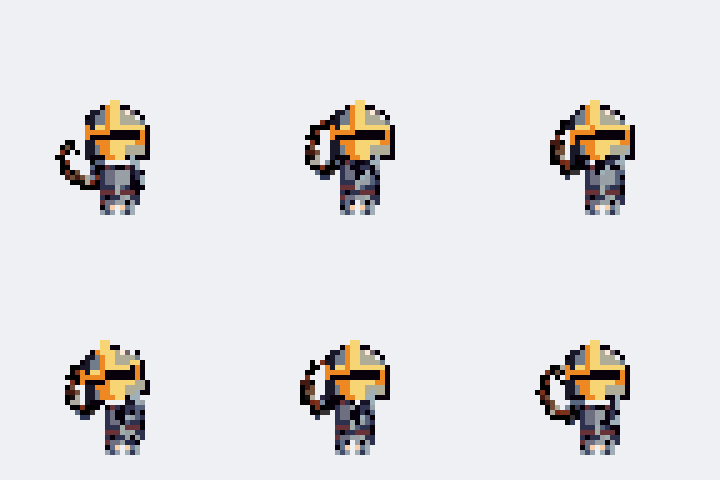
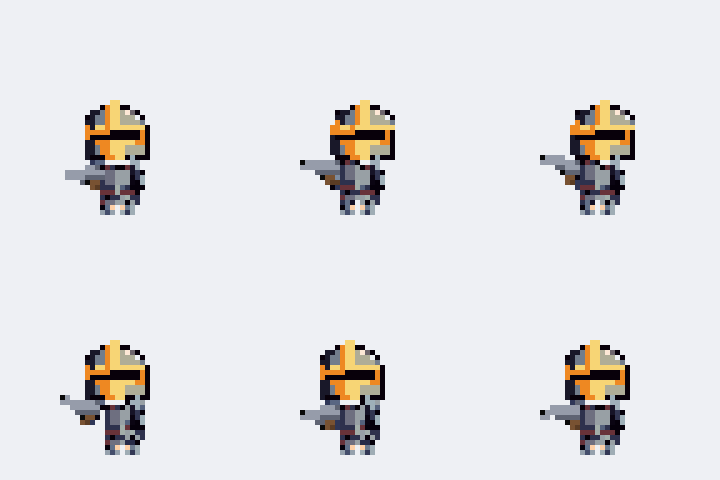
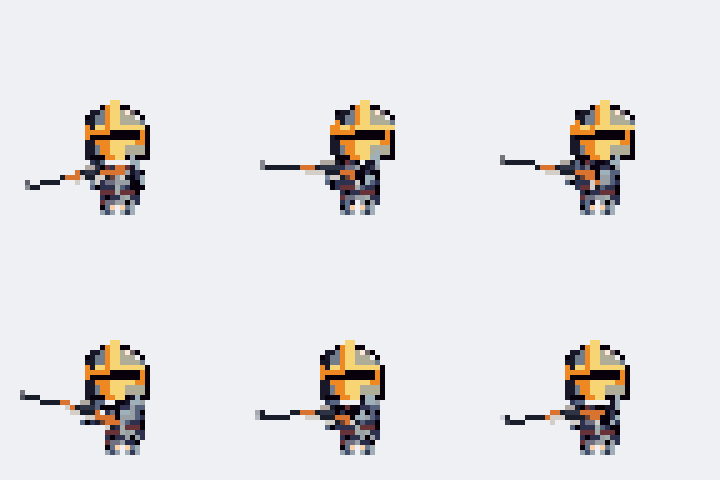
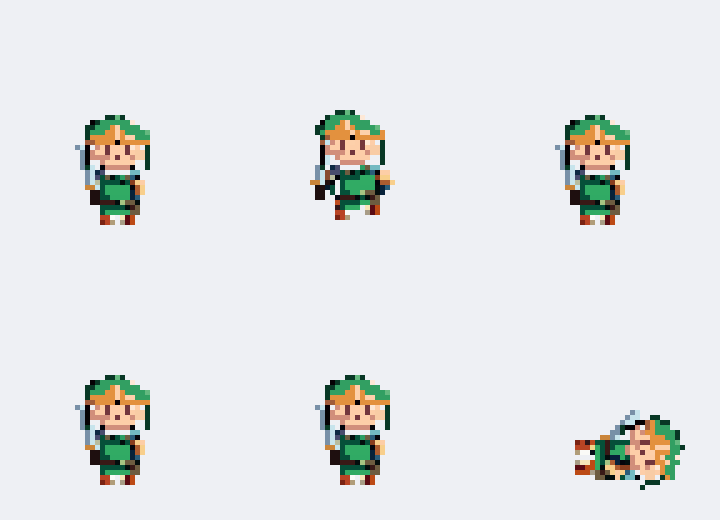
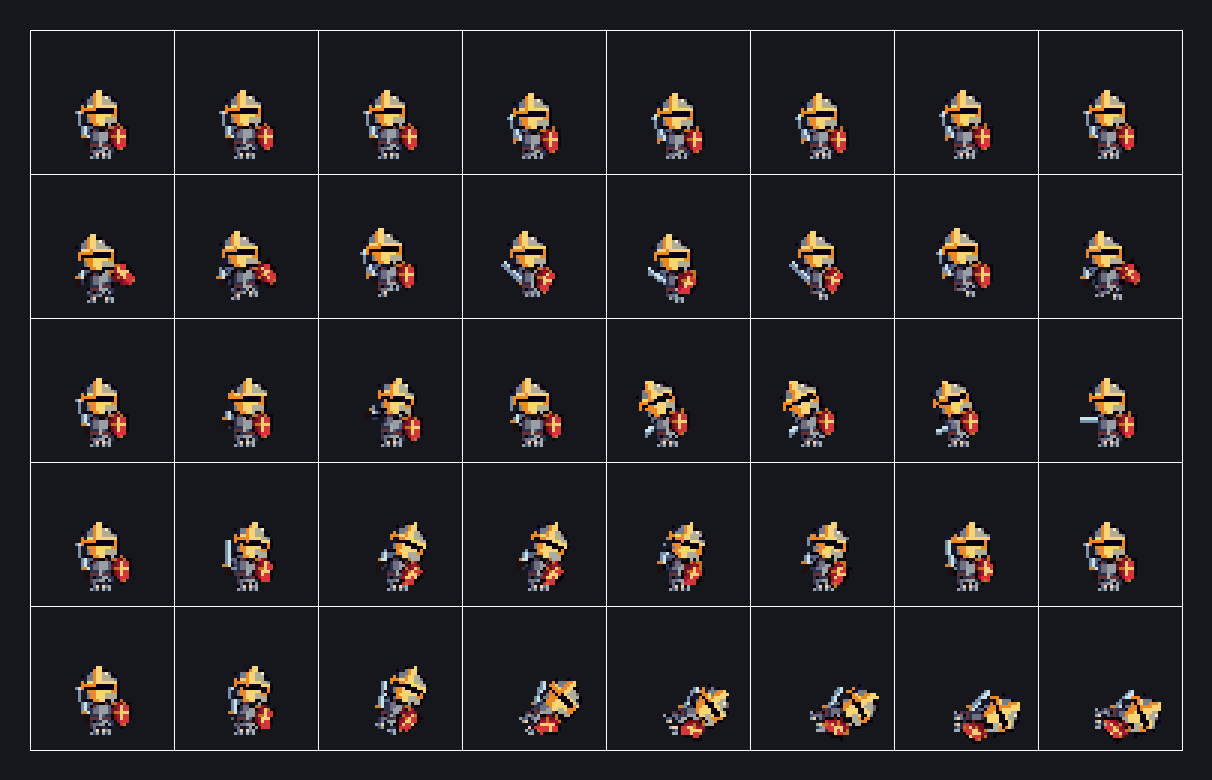
The new **Mini Character** tab is immediately left of Character. It has eight
frame-animated classes and its own outfit slots, helmet offsets, compatible
weapons, PNG exports, timing JSON, Godot 4 files and separate combination backup/import. Open `/mini-character` (English) or
`/ko/mini-character` (Korean). Read [/mini-ai-guide.md](/mini-ai-guide.md) for
the complete bilingual selector, timing and format specification. Its catalog
is `/assets/mini/manifest.json`. The Character rig/upload/export instructions
below do **not** apply to Mini. Mini selectors all start with `mini-`.

UnitForge (https://www.unitforge.net) is a web-based pixel-art character maker with separate Mini Character and Character workflows. The Character workflow described below assembles a 21-pixel chibi from interchangeable parts (body, hair, helmet, armor, boots, weapon, shield), plays joint-driven animations, and exports PNG stills and sprite sheets. Mini uses its own frame-based renderer and catalog; follow the dedicated specification linked above. The selectors below describe Character unless another tab is explicitly named.

This file is always available at: https://unitforge.net/ai-guide.md

## 1. Core concepts

- Character: 21 px tall retro pixel chibi, 3/4 view. **Faces LEFT by default**; use the Flip button for right-facing.
- Joint animation: complete pixel parts attach to head, body, arm and foot pivots. The shared native frame renderer serves the character, editor and exports. Head/helmet outlines form a single neck boundary; torso collars continue their material color.
- Rendering is nearest-neighbor (crisp pixels). The stage defaults to a 10× preview; exports default to native resolution, with optional 2×/4× integer enlargement.
- The **red dashed box** on the stage is the export frame (48×48 native px). Pixels outside it are clipped in exports.
- The UI is bilingual (English default / Korean). Control selectors below are language-independent.

## 2. UI map — stable selectors

Each screen has its own URL, so an agent can navigate straight to it instead of
clicking through tabs. English lives at the root, Korean under `/ko/`.

| Screen | URL | Korean |
|---|---|---|
| Mini Character (home) | `/` | `/ko/` |
| Character | `/character` | `/ko/character` |
| Monsters | `/monsters` | `/ko/monsters` |
| Character Editor | `/editor` | `/ko/editor` |
| Guide | `/guide` | `/ko/guide` |
| Guide for AI (this document) | `/ai-guide` | `/ko/ai-guide` |

The raw markdown of this document is also served at `/ai-guide.md`.
Tabs are real links (`a.tab-btn[data-tab="…"]`); clicking one swaps the view via
pushState without a full page load.

All character-assembly controls live on the **Character** tab (the default tab; other tabs are Monsters, Character Editor, Guide, Guide for AI and are not needed for assembly). Dispatch a `change` event after setting a `<select>`, and an `input` event after setting a number/color input, or interact by real clicks/keystrokes.

| Control | Selector | Behavior |
|---|---|---|
| Part select (per category) | `select[data-cat="<Category>"]` | Option value = part index as string; `"-1"` = none/unequipped. Categories: `Body`, `Hair`, `Helmet`, `Armor`, `Boots`, `Weapon`, `Shield` |
| Position adjust | `input[data-cat="<Category>"][data-adj="x"]` / `[data-adj="y"]` | Number, −20…20 px, step 1. +X = toward facing direction (forward), +Y = down |
| Tilt adjust (Weapon/Shield only) | `input[data-cat="<Category>"][data-adj="r"]` | Number, −180…180°, step 15. Weapon pivots at its grip, shield at its center |
| Hair tint | `input[data-tint="Hair"]` | Color input; recolors the hair |
| Helmet mode | `select#helm-mode` | `sealed` / `eyes` — affects closed-type helmets only (see §4) |
| Animation | `select#anim-select` | Values listed in §5. Conditional attack entries appear only when a matching weapon type is equipped |
| Flip left/right | `button#btn-flip` | Toggles facing. Current direction is readable from its `data-facing` attribute: `"left"` (default) or `"right"` |
| Play/Pause | `button#btn-play` | Toggles animation playback |
| Export PNG | `button#btn-png` | Downloads `unitforge_character.png` at 1×, or `unitforge_character_x2.png` / `_x4.png` (see §6) |
| Export scale | `select#export-scale` | `1` / `2` / `4`; applies to PNG and sheet downloads (default `1`) |
| Sheet target | `select#export-anim` | Set by option **value**: `ALL` or an animation name. (Visible labels are localized — e.g. the ALL option displays "All"/"전체" — so match by value, not text) |
| Export sheet | `button#btn-sheet` | Downloads the sprite sheet for the sheet target (see §6) |
| Export for Godot | `button#btn-godot` | Opens a dialog; exports `.png` + `.tres` (+ optional `.tscn`) for Godot 4 (see §6) |
| Preset: default knight | `button#preset-default` | Sword + shield + full knight set |
| Preset: all off | `button#preset-alloff` | Bare base body |
| Preset: random | `button#preset-random` | Random part per category |
| Upload custom part | `button[data-upload="<Category>"]` | Opens the upload modal for that category (see §7) |
| Delete custom part | `button[data-del="<Category>"]` | Visible only while a custom part is selected |
| Export backup | `button#btn-backup` | Downloads every custom part as a single `unitforge-parts.json` |
| Import backup | `button#btn-restore` | Opens a file picker; merges a backup `.json` back in (duplicates are skipped) |

Upload modal fields: `#upload-name` (text), `#upload-file` (file input, PNG only, multi-file allowed), `#upload-form` (form/type dropdown — shown for Helmet and Weapon), `#upload-sample` (downloads a correctly-formatted sample PNG), `#upload-confirm` / `#upload-cancel`.

## 3. Built-in parts catalog

<!--PARTS_START-->
| Category | Built-in parts | Controls |
|---|---|---|
| Body | Base 01, Orc, Goblin, Skeleton, Zombie | always on (not removable), tintable (skin tone via `input[data-tint="Body"]`, multiply — darker tones only), custom bases can be uploaded/drawn (6-cell) |
| Hair | Brown, Blonde, Black, Long, Ponytail, Spiky, Bob, Mohawk | removable, tintable, adjust X/Y |
| Helmet | Knight 01 (Closed), Open 01, Viking, Kettle, Crested, Leather Cap, Gold Helm (Closed), Dark Helm (Closed), Ranger Hood, Mage Hat, Paladin Wing (Closed) | removable, adjust X/Y |
| Armor | Knight 01, Leather, Gold, Dark, Ranger, Mage Robe, Crimson, Paladin, Bronze, Frost | removable, adjust X/Y |
| Boots | Knight 01, Leather, Gold, Dark, Ranger, Mage, Crimson, Paladin, Bronze, Frost | removable, adjust X/Y |
| Weapon | Sword 01, Axe, Hammer, Dagger *(chop)*, Bow *(bow)*, Dagger Red *(chop)*, Staff, Mace, Sword Silver, Sword Bronze, War Pick, Pistol *(handgun)*, Rifle *(long gun)*, Musket *(long gun)*, Revolver *(handgun)*, Spear *(two-hand thrust)*, Trident *(two-hand thrust)* | removable, adjust X/Y/R |
| Shield | Shield 01, Round Wood, Tower, Round Red, Kite Blue, Gold, Green, Crystal, Dark Gem, Kite Red | removable, adjust X/Y/R |
<!--PARTS_END-->

Weapon behavior column meanings — see §4. Custom uploads are appended to the same selects, prefixed `★`.

## 4. Equipment behavior and conditional animations

Each weapon has a behavior type. Equipping it replaces generic ATTACK with its dedicated attack in `#anim-select` and `#export-anim`:

| Type | Attack animation | Behavior |
|---|---|---|
| melee | `ATTACK` (generic) | Overhead swing. Held behind the body, blade up |
| chop (dagger) | `CHOP_ATTACK` | Arm raises to 120°, slams down to 50°. Weapon and arm render in front during the attack |
| two-hand thrust (spear) | `SPEAR_ATTACK` | Held in its attack-ready grip, then backswing and forward lunge with both hands on the shaft |
| bow | `BOW_ATTACK` | Front arm extends to the bow, draw, release snap |
| handgun | `PISTOL_ATTACK` | One-hand aim and recoil; the free arm stays down |
| long gun | `RIFLE_ATTACK` | Two-hand aim and recoil, with the support hand on the gun. IDLE/MOVE/RUN retain the weapon-specific ready grip |

Helmet modes (`#helm-mode`) apply to helmets marked "(Closed)": `sealed` = original helmet, `eyes` = the same original with only its pure black (#000000) eye-slit pixels opened. Silhouette, decorations, palette and all pixels outside the slit stay identical. There is no Open visor mode; Open 01 remains a separate helmet item. Other helmets ignore the mode. Equipping any helmet hides hair.

Crested and Mage Hat hide the base head above the brim, so the scalp cannot protrude through the horns or hat silhouette. At the default position, head rows 0–11 are hidden and the visible face begins at row 12 in the 32×32 source cell. This applies to all five bases, both facings, every animation (including CHOP_ATTACK), the editor preview and exports. The source head/helmet PNGs are unchanged. Editor copies retain this fit behavior after saving, reloading and JSON backup/restore; a fresh PNG upload does not carry that metadata. Viking keeps the full original head and uses a deeper helmet shell with extended lower sides instead of head clipping.

## 5. Animations

| Name | Duration (s) | Loop | Notes |
|---|---|---|---|
| IDLE | 2.0 | yes | Breathing bounce |
| MOVE | 0.6 | yes | Walk cycle, feet keep ground contact |
| RUN | 0.4 | yes | Faster stride with airborne poses |
| ATTACK | 0.5 | yes | Generic melee swing |
| CHOP_ATTACK | 0.5 | yes | Dagger only (conditional) |
| SPEAR_ATTACK | 0.6 | yes | Spears only (conditional) |
| BOW_ATTACK | 0.9 | yes | Bow only (conditional) |
| PISTOL_ATTACK | 0.6 | yes | Handguns only (conditional) |
| RIFLE_ATTACK | 0.6 | yes | Long guns only (conditional) |
| DAMAGED | 0.4 | yes | Knockback flinch |
| DEATH | 0.8 | no | Falls backward, ends lying down |

## 6. Exports

- **PNG** (`#btn-png`): one still IDLE pose, 48×48 native px at 1× (96×96 at 2×, 192×192 at 4× via `#export-scale`). Always IDLE regardless of the selected animation.
- **Sheet** (`#export-anim` + `#btn-sheet`): 8 frames per row, **48×48 native px per frame**. One animation = 384×48. `ALL` = one row per available animation, top to bottom in the `#export-anim` listed order (6 rows = 384×288 at 1×; the dedicated attack replaces the generic row).
- Frame times: looping animations sample t = i·(duration/8) for i = 0…7 (no duplicated end frame); DEATH samples t = i·(duration/7) so the final lying pose is included.
- Part adjustments, tilt, facing (flip), helmet mode, and tint are all reflected in exports.
- **Godot 4** (`#btn-godot` → dialog): exports three files — the sheet `.png`, a `SpriteFrames` `.tres` (one animation per sheet row; looping rows: 8 equal frames at fps = 8/duration; DEATH is `loop=false` with fps = 14/duration and per-frame `duration` 1,2,2,2,2,2,2,1 so the first/last pose last half a slot — the total equals the on-screen duration) and, when `#godot-autoplay` is checked, a ready-to-run `.tscn` (AnimatedSprite2D, `texture_filter = 1` nearest, autoplay on the first animation). Dialog fields: `#godot-name` (file base name), `#godot-scale` (1/2/4 → 48/96/192 px frames), `#godot-autoplay`; confirm with `#godot-go`. Put all files in the same Godot project folder. The Monsters tab has the same flow via `#mon-godot` (see the Monsters UI map) — the node is named `UnitForgeMonster` and large sheet monsters use their own frame size (80/96 px) instead of 48.
- Engine import settings: grid 48×48, pivot at bottom-center (ground line is 6 px above the frame's bottom edge), filter **Point/Nearest**, no compression, no mipmaps. Suggested PPU: 32.

## 7. Custom part upload

Per category, click `button[data-upload="<Category>"]`. Rules (violations are rejected or auto-corrected):

- **PNG only**, validated by file signature (renaming other formats does not bypass it).
- Canvas: **32×32 px per cell**, drawn at assembly position (the sample from `#upload-sample` shows the exact expected layout — download it and draw over it). Integer upscales (64×64, 96×96 … = N× grid) are auto-detected and downscaled.
- Multi-cell categories use one horizontal strip: **Body** = 192×32 (head | torso | left arm | right arm | left foot | right foot), **Armor** = 96×32 (torso | left shoulder | right shoulder), **Boots** = 64×32 (left | right). Others are single 32×32.
- Weapon blade / boot toe must point **+x (right)** in the art. The general melee weapon grip is at (23,23), shield center at (10,21). Specialized attacks use type-specific grips: spear (23,17), bow (26,17), handgun (24,22), long gun (23,20). Load the matching built-in weapon in the editor as a placement reference and preview its attack before exporting.
- Helmet/Hair: every pixel in the 32×32 cell, including the face, is editable and preserved during load, save and upload. Choose standard/free drawing (`cap`) or `closed` in `#upload-form`. Closed mode derives Eyes visible directly from the original using an optional #000000 eye slit inside the face window; it never modifies the original image. Without a slit, both modes look identical.
- Weapon: choose the behavior type (§4) in `#upload-form`: melee / chop / two-hand thrust / bow / handgun / long gun.
- Storage: parts persist in this browser only (localStorage) — there is no account and nothing is uploaded. Use `button#btn-backup` / `button#btn-restore` to move them between browsers or machines as a `.json` file. Delete the selected custom part with `button[data-del="<Category>"]`.

## 8. Verified recipes

**R1 — Dark knight with a rifle, facing right, full sheet export:**
1. Click `#preset-default`.
2. `select[data-cat="Helmet"]` → option with text `Dark Helm (Closed)`; `select[data-cat="Armor"]` → `Dark`; `select[data-cat="Boots"]` → `Dark`.
3. `select[data-cat="Weapon"]` → `Rifle` (replaces ATTACK with RIFLE_ATTACK), `select[data-cat="Shield"]` → `-1` (None).
4. `#anim-select` → `RIFLE_ATTACK` to preview; if `#btn-flip` has `data-facing="left"`, click it for right-facing.
5. `#export-scale` → `1`; `#export-anim` → `ALL`; click `#btn-sheet`. Result: 384×288 sheet (6 rows: IDLE, MOVE, RUN, RIFLE_ATTACK, DAMAGED, DEATH).

**R2 — Red-haired ranger with a bow, PNG portrait:**
1. `#preset-alloff`, then `select[data-cat="Hair"]` → `Brown`, `input[data-tint="Hair"]` → `#c03030`.
2. `select[data-cat="Armor"]` → `Ranger`, `Boots` → `Ranger`, `Helmet` → `-1`, `Weapon` → `Bow`.
3. `#export-scale` → `4`; click `#btn-png`. Result: `unitforge_character_x4.png`, a 192×192 still IDLE PNG.

**R3 — Spearman with a gold helm and visible eyes:**
1. `#preset-default`; `select[data-cat="Weapon"]` → `Spear`; `Shield` → `Tower`.
2. `select[data-cat="Helmet"]` → `Gold Helm (Closed)`; `#helm-mode` → `eyes`.
3. `#anim-select` → `SPEAR_ATTACK` to preview the two-hand thrust; export as needed.

## 9. Errors, limits & compatibility (the failure ledger)

- **Browser support**: evergreen browsers (Chromium, Firefox, Safari — ES modules + Canvas 2D required). Developed and CI-verified on Chromium. A responsive mobile layout exists (≤820px width); the desktop layout and all selectors are unchanged by it.
- **Selector stability contract**: element `id`s and `data-*` attributes documented in §2 are the stable automation API — they are kept backward-compatible. Part option **indexes are NOT stable** (parts get added); resolve the current option by visible part name (§3 catalog), then select its current value. Fixed controls such as animation and export scale use stable values. The on-screen/copyable parts table is populated from the runtime catalog; the raw Markdown table is a release snapshot, so inspect current dropdown options if they differ.
- **Upload rejection receipts** (shown in the modal status line; exact English texts):
  - wrong extension → `Not a PNG file (.{ext})`
  - content is not a real PNG (magic-byte check) → `Not a PNG file (content check failed)`
  - file over 2 MB → `File too large (max 2MB)`
  - wrong canvas geometry → `Expected {w}×{h} (or an integer multiple), got {gw}×{gh}` (multiples up to 16× are accepted and downscaled)
  - helmet/hair pixels inside the face window → preserved, with no automatic deletion or color normalization
  - browser storage full → the part is added for this session but warns that it will not survive a refresh
- **No server-side state**: there is no API, no account and no upload. Everything runs in the browser, so the only cap is the browser's own localStorage quota.
- **Export bounds**: use the red frame to check your composition. Large custom art and manual position/tilt adjustments can still extend outside the 48×48 frame and be clipped.
- **Helmet-fit regression** (local, 2026-09-09): Viking/Crested/Mage Hat passed 5 bases × 2 facings × 6 weapon behaviors, covering 8,640 exported frames, plus editor save/reload checks.

## 10. License

- Characters you assemble from **built-in parts** and export (PNG or sprite sheet) are **free to use, including in commercial projects. No attribution required.**
- Do **not** redistribute or resell the raw built-in part assets themselves (the .png part files) outside of exported characters.
- **Custom parts you upload** remain your responsibility: you must hold the rights to the images you upload, and the service disclaims liability for user-uploaded content (see the site notice).

## 11. Blind-run record

2026-09-09.5 local Viking correction: full head preserved; the extended helmet shell is raised 3px and has a slightly pointed crown. Kettle uses the original Adjust X +1 / Y -1 position as its new 0,0 default (960 frame comparisons match the original adjustments). Verified all 5 bases, both facings and 6 weapon types (2,880 frames), plus a displaced-helmet check confirming the scalp remains present. `node tools/qa/viking_shell.cjs`. The recipe hash below belongs to the previous verification.

Verification records distinguish local builds from the deployed site. A local pass verifies this workspace version only; it does not confirm that production has been deployed. If no row matches the Spec-Version above, treat that version as unverified.

Previous local verification for 2026-09-09.4 (2026-09-09, `http://localhost:8765`): R1/R2/R3 passed through the documented UI selectors. Confirmed R1 row order and 384×288 download; R2 4× filename and 192×192 download; R3 SPEAR_ATTACK with eyes mode; all 7 catalog categories, 11 animation durations/loop flags and 22 monster options. Visor offers only Sealed/Eyes visible; all 4 closed helmets passed 11,520 frame comparisons across 5 bases, both facings and 6 weapon behaviors, with no changes outside the eye slit. Editor copies retain their closed type after save/reload. No browser errors. Re-run visor checks with `node tools/qa/visor.cjs`, and recipe checks with `node tools/qa/ai_guide.cjs` from the repository root while the local preview is running.

| Date | Spec-Version | Browser build | Recipe | Export pixel-hash (SHA-256) | First selector failure |
|---|---|---|---|---|---|
| 2026-09-09 (local) | 2026-09-09.4 | Edge/152.0.4191.66 | R1 (§8) | `aa1fb5e27c52cb991a6b85d990806b2dde9362b2f4fa007ebcadd90f7303b120` | none |
| 2026-09-09 (local) | 2026-09-09.3 | Edge/152.0.4191.66 | R1 (§8) | `aa1fb5e27c52cb991a6b85d990806b2dde9362b2f4fa007ebcadd90f7303b120` | none |
| 2026-08-22 | 2026-08-22.3 | Chrome/148.0.7778.280 | R1 (§8) | `76e03984def5fd9258475c7868f708c298b389221801a03d5cc21dfb021a31a5` | none |
| 2026-08-22 | 2026-08-22.2 | Chrome/148.0.7778.280 | R1 (§8) | `76e03984def5fd9258475c7868f708c298b389221801a03d5cc21dfb021a31a5` | none |
| 2026-08-22 | 2026-08-22.1 | Chrome/148.0.7778.280 | R1 (§8) | `76e03984def5fd9258475c7868f708c298b389221801a03d5cc21dfb021a31a5` | none |

Reproduction method: execute Recipe R1 exactly as written (§8) via the documented selectors, then hash the resulting ALL sheet's **raw RGBA pixel buffer** (`getImageData` over the full 384×288 sheet canvas, SHA-256 over `data.buffer`). Pixel bytes are hashed instead of the PNG file because PNG encoders differ across browsers; nearest-neighbor integer rendering makes the pixel buffer deterministic for a given asset set. The hash changes legitimately whenever built-in assets or animations are updated — compare against the row above, not across versions.

## 12. Misc

- Presets/`#preset-random` are instant; there is no undo — re-select parts to revert.
- There is no login and no account. Custom parts never leave the browser; the only way to move them is the backup `.json`.
- Uploaded content must respect copyright; the service disclaims responsibility for user uploads (see the site notice).
- Feedback can be submitted from the page footer.

## 13. Monsters tab

Open `/monsters` directly, or click `a.tab-btn[data-tab="monsters"]`. A standalone bestiary of 22 creatures (no equipment): 17 rigged + 5 frame-animated (rustcrab, gazetumor, spinecrawler, hornbrute, fleshmaw). Assets lazy-load on first open — wait until `select#mon-select` has options.

| Control | Selector | Behavior |
|---|---|---|
| Monster | `select#mon-select` | Option value = roster index (string). 22 creatures; indices 0-4 are the frame-animated ones (fleshmaw, rustcrab, gazetumor, spinecrawler, hornbrute), 5-21 are rigged |
| Color presets | `#mon-presets button.swatch` | Click a swatch to tint (multiply); `data-color` holds its hex |
| Color (free) | `input#mon-color` | Any color; tint is applied to exports too |
| Animation | `select#mon-anim` | `IDLE`/`MOVE`/`ATTACK`/`DAMAGED`/`DEATH` (DEATH is one-shot) |
| Flip | `button#mon-flip` | Toggles facing (`data-facing`) |
| Play/Pause | `button#mon-play` | |
| Export PNG / Sheet | `button#mon-png` / `button#mon-sheet` | Same format as character exports; frame = 48×48 for rigged monsters, or the monster's own frame for large sheet monsters (Horn Brute 80, Flesh Maw 96). Sheet = 5 rows; sheet monsters keep native frame counts (IDLE 6 / MOVE 8 / ATTACK 8 / DAMAGED 4 / DEATH 4, or 6 for hornbrute and fleshmaw) |
| Export for Godot | `button#mon-godot` | Opens the same Godot dialog as the character tab (`#godot-name` defaults to `unitforge_<id>`, `#godot-scale` labels show the monster's frame); exports `.png` + `.tres` (+ optional `.tscn`). Sheet monsters get per-frame `duration` multipliers with `speed = 1000 / shortest frame` (10 fps, DEATH's last frame ×6); DEATH is `loop=false` |

## 14. Character Editor tab

Open `/editor` directly, or click `a.tab-btn[data-tab="editor"]`. Draw a custom part pixel-by-pixel or load an existing one and edit it. **Saving uses the same pipeline as upload** and preserves the original pixel colors, including the face. The optional Eyes visible view, weapon types and inherited brim-fit metadata (§4) are attached separately. The editor starts with a complete base; saved parts appear in the Character tab's `select[data-cat=…]` list.

| Control | Selector | Behavior |
|---|---|---|
| Category | `select#ed-cat` | `Body`/`Hair`/`Helmet`/`Armor`/`Boots`/`Weapon`/`Shield` |
| Load | `select#ed-load` | `-1` = new blank; ≥0 = load that built-in/custom part to edit (starts with Base 01; Body subsequently loads the selected reference base) |
| Reference base | `select#ed-base` | Equipment preview/placement guide use the chosen base; preserves the species selected when editing Body |
| Playback | `button#ed-play` / `#ed-restart` | Pause/play or restart from frame 0; DEATH holds its final frame |
| Preview | `canvas#ed-preview` | 48px native frame, enlarged to roughly 288 CSS px using integer device pixels |
| Cell (multi-cell parts) | `#ed-cells button` | Body/Armor/Boots have multiple cells; click to switch which cell you paint |
| Tools | `button#ed-pen` / `#ed-eraser` / `#ed-fill` / `#ed-pick` | Right-click always erases |
| Color | `input#ed-color` + `#ed-palette button.swatch` | `#000000` swatch = closed-helmet eye slit |
| Undo/Redo/Clear | `button#ed-undo` / `#ed-redo` / `#ed-clear` | Also Ctrl+Z / Ctrl+Y |
| Animation | `select#ed-anim` | Previews the part on an animated body (facing left, like the Character tab) |
| Form (Helmet/Weapon) | `select#ed-form` | Same options as upload (§7); sets closed/cap or weapon type |
| Adjust | `input#ed-dx` / `#ed-dy` / `#ed-rot` | Reflected in both the edit canvas and the preview (R only for Weapon/Shield) |
| Save | `input#ed-name` + `button#ed-save` | Adds a new custom part (never overwrites) — appears in the Character tab list |

- The edit canvas is shown left-facing to match the Character tab; you draw in the art's native right-facing coordinates and clicks are auto-corrected (a weapon blade drawn toward the front/left is saved pointing +x, per §7).