미니 캐릭터
8개 직업의 작은 캐릭터. 의상 교체, 픽셀 프레임 동작, 속성검을 조합하세요.
미니 캐릭터 파츠를 불러오는 중…
의상은 직업별 자세에 맞춘 파츠입니다. 기마 하체와 무기를 잡는 동작은 직업별로 유지합니다. 무기는 동작이 호환되는 목록만 표시합니다. X/Y는 헬멧만 ±6픽셀 이동하며, 크게 옮기면 빈틈이 보일 수 있습니다.
마지막 조합은 이 브라우저에만 저장합니다.
 UnitForge Web Pixel Art Character Generator
8개 직업의 작은 캐릭터. 의상 교체, 픽셀 프레임 동작, 속성검을 조합하세요.
미니 캐릭터 파츠를 불러오는 중…
의상은 직업별 자세에 맞춘 파츠입니다. 기마 하체와 무기를 잡는 동작은 직업별로 유지합니다. 무기는 동작이 호환되는 목록만 표시합니다. X/Y는 헬멧만 ±6픽셀 이동하며, 크게 옮기면 빈틈이 보일 수 있습니다.
마지막 조합은 이 브라우저에만 저장합니다.
UnitForge is a free browser tool for making 2D pixel art characters. Assemble a character from swappable parts — body, hair, helmet, armor, weapons — preview the idle, move and attack animations, then export a single PNG or a sprite sheet for any 2D engine. The Godot 4 export writes the sprite sheet, a SpriteFrames .tres and a ready-to-run scene. No signup, and characters built from the built-in parts are free to use commercially.
Each dashed box mirrors the actual control on the Character tab. The arrow links each box to its explanation.
The assembled character animates in real time on the left canvas. Everything — part selection, colors, adjustments, export — is operated from the right panel. The character faces left by default and all actions (attack, move) are left-oriented.
Select Body, Hair, Helmet, Armor, Boots, Weapon and Shield individually. Choose None to unequip. In the list, ★ marks custom parts stored in this browser.
The + button on the right uploads a custom part (see section 6).
Categories with a color swatch can be tinted. White (#ffffff) is the original color.
Applies only to closed-type helmets (marked "Closed"); caps and open helmets are unaffected. Crested and Mage Hat hide the scalp above the brim in both modes. Viking preserves the full head and covers it with an extended lower shell.
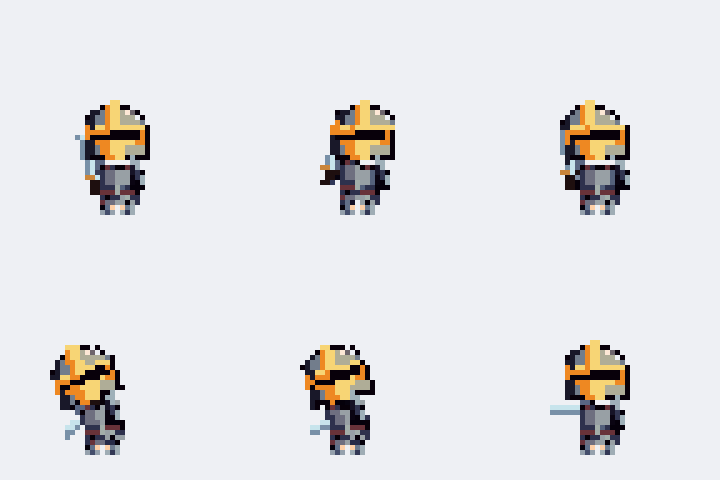
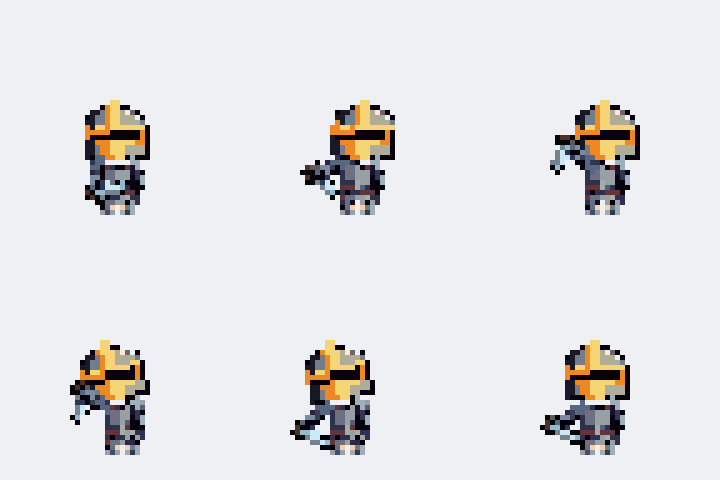
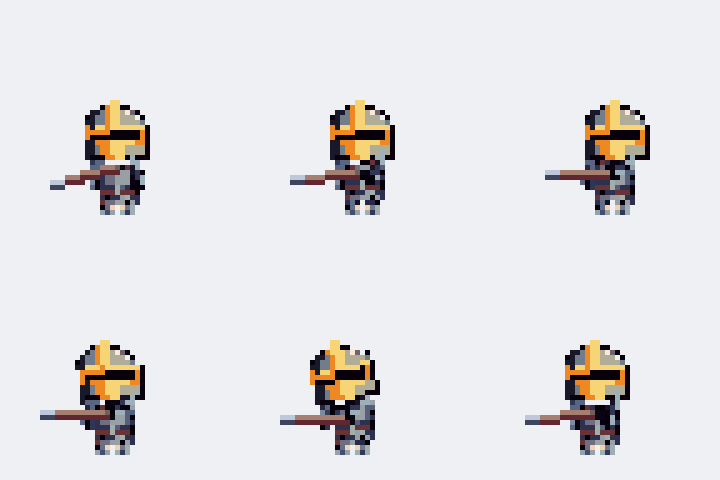
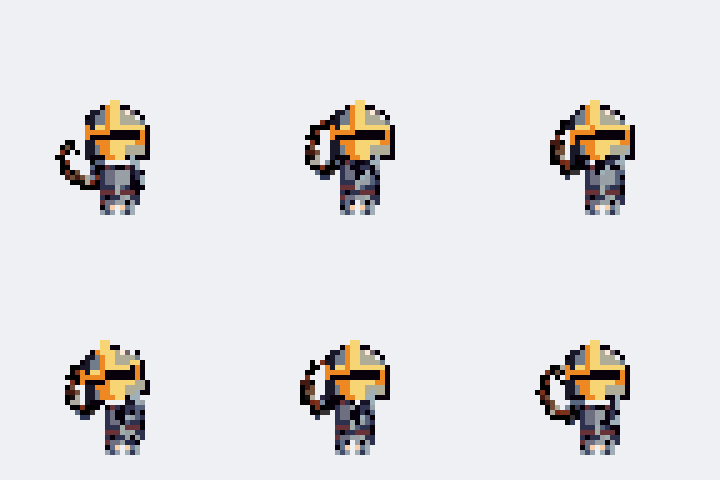
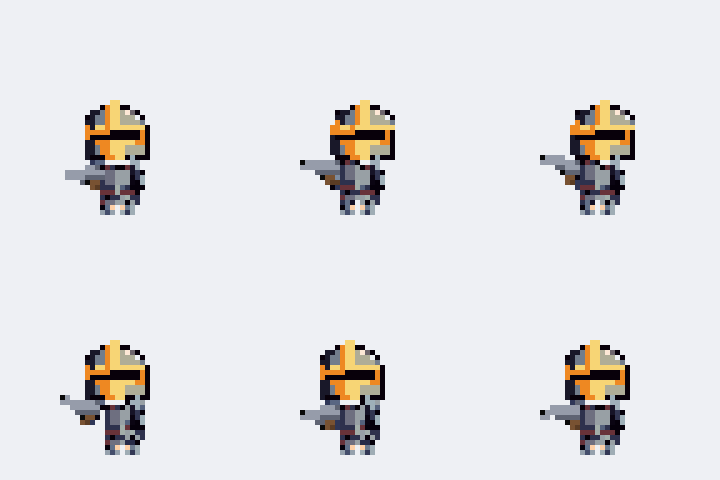
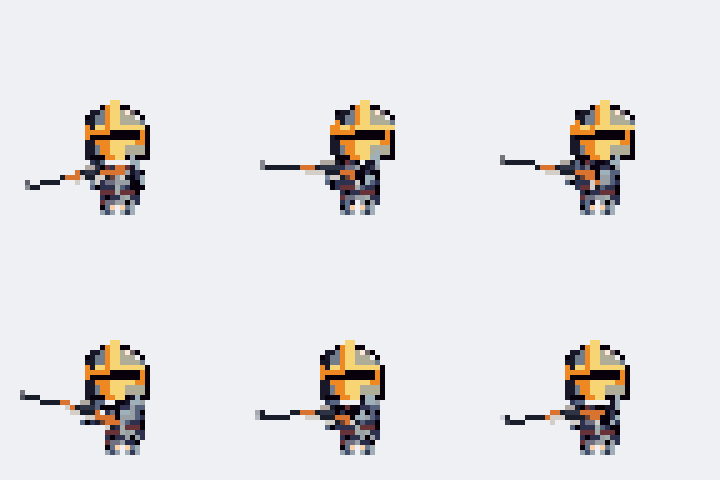
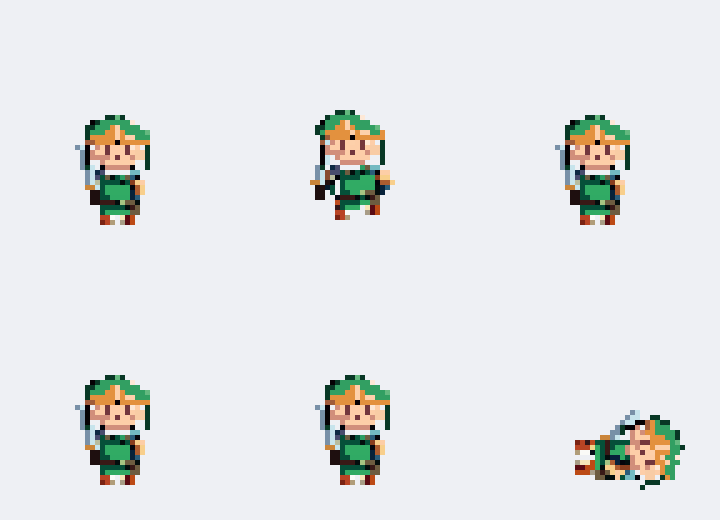
IDLE, MOVE, RUN, ATTACK, DAMAGED and DEATH play in real time. Use ↔ Flip to mirror the facing and ⏸ Pause to freeze a moment.
Daggers, spears, bows, handguns and long guns replace ATTACK with CHOP_ATTACK, SPEAR_ATTACK, BOW_ATTACK, PISTOL_ATTACK and RIFLE_ATTACK respectively. DEATH plays once and holds its last pose.
Press the + button on any category to open the upload dialog and follow the spec shown there. Key rules:
Only PNG files are accepted and the file content is verified. You can drop multiple files at once (file name = part name). Uploaded parts appear with ★ and support adjustment, animation and export just like built-in parts.
Select a custom part in the list and a 🗑 button appears to delete it.
Custom parts live only in this browser (★). Nothing is uploaded anywhere, and no account is needed — but clearing your browser data deletes them.
⬇ Export backup in the footer saves every custom part into a single .json file. ⬆ Import backup reads it back — on this machine or any other. Importing merges rather than overwrites, so re-importing the same file twice is safe.
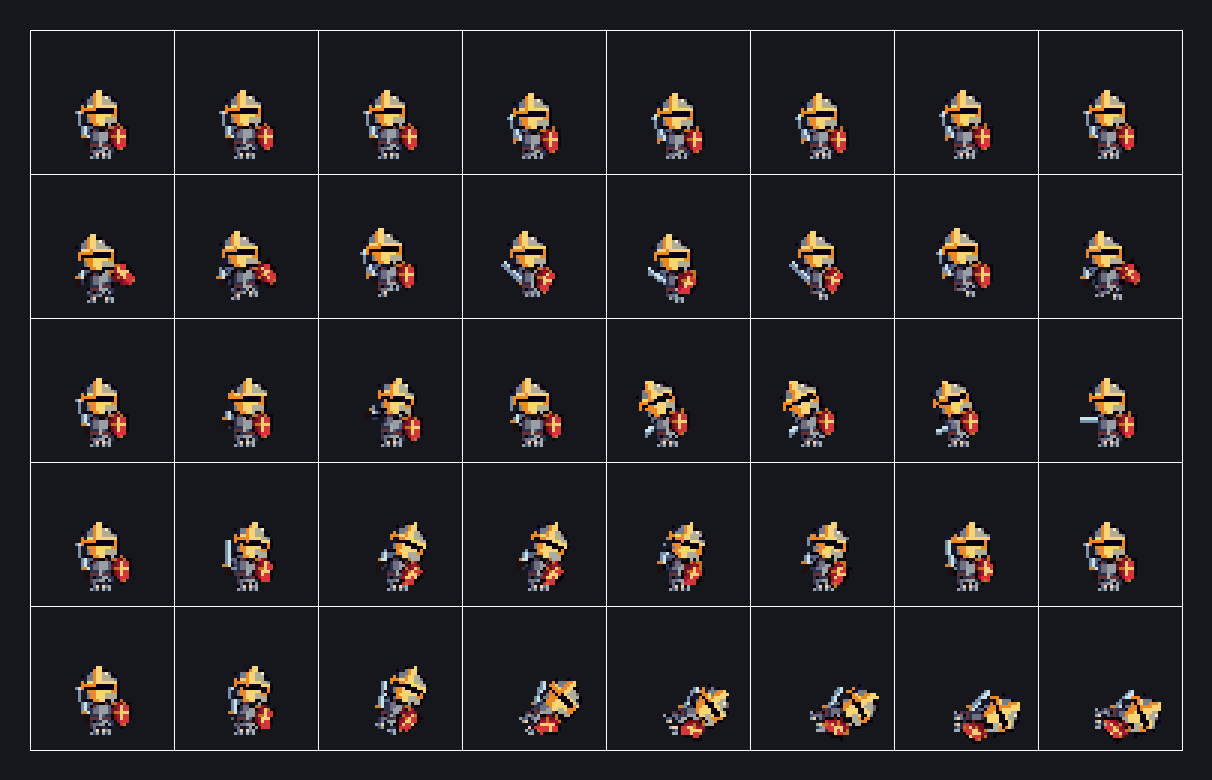
The Monsters tab is a ready-made bestiary — 22 creatures: 17 rigged across many types (large humanoids, slimes, ghosts, bats, four-legged beasts, bugs, a mushroom, a mimic, a serpent) plus 5 frame-animated horrors — demons (horned brutes…) and gore beasts that are mostly mouth. Pick one, choose a color (preset swatch or any color — applied to exports too), preview its 5 animations, and export a PNG, a sprite sheet or Godot 4 files (.png + SpriteFrames .tres + .tscn) just like a character.
Edit the complete base or any equipment part. Pen, eraser, fill, eyedropper, undo and redo are available.
All built-in parts are original assets. You are solely responsible for the copyright and legal standing of sprites you create or export and custom parts you upload. See 📢 Notice in the top-right for details.
These days, AI agents do the building. The specification below is a complete, tested operating manual for UnitForge — every selector, part, animation and export format. Copy it and paste it to your AI (or give it the URL on the right), then ask in plain language, for example:
Downloads a sprite sheet .png, a SpriteFrames .tres (every animation, correct frame rate and loop flags) and optionally a ready-to-run .tscn scene.
Drop the files into your Godot project folder — the scene plays right away, or assign the .tres to any AnimatedSprite2D.